The apps
QRemote for iPhone and Apple Watch, and QRemote Relay for Mac.
Coming soon to the App Store.
| App | Runs on | Does |
|---|---|---|
| QRemote | iPhone (iOS 18 or later) | Remote with your notes; sets up the watch |
| QRemote for Apple Watch | Apple Watch (watchOS 11 or later) | Remote on your wrist; buzzes when time is up |
| QRemote Relay | Mac (macOS 15 or later) | Links the presentation in your browser to the remotes |
You also need a presentation that uses the qremote extension.
iPhone
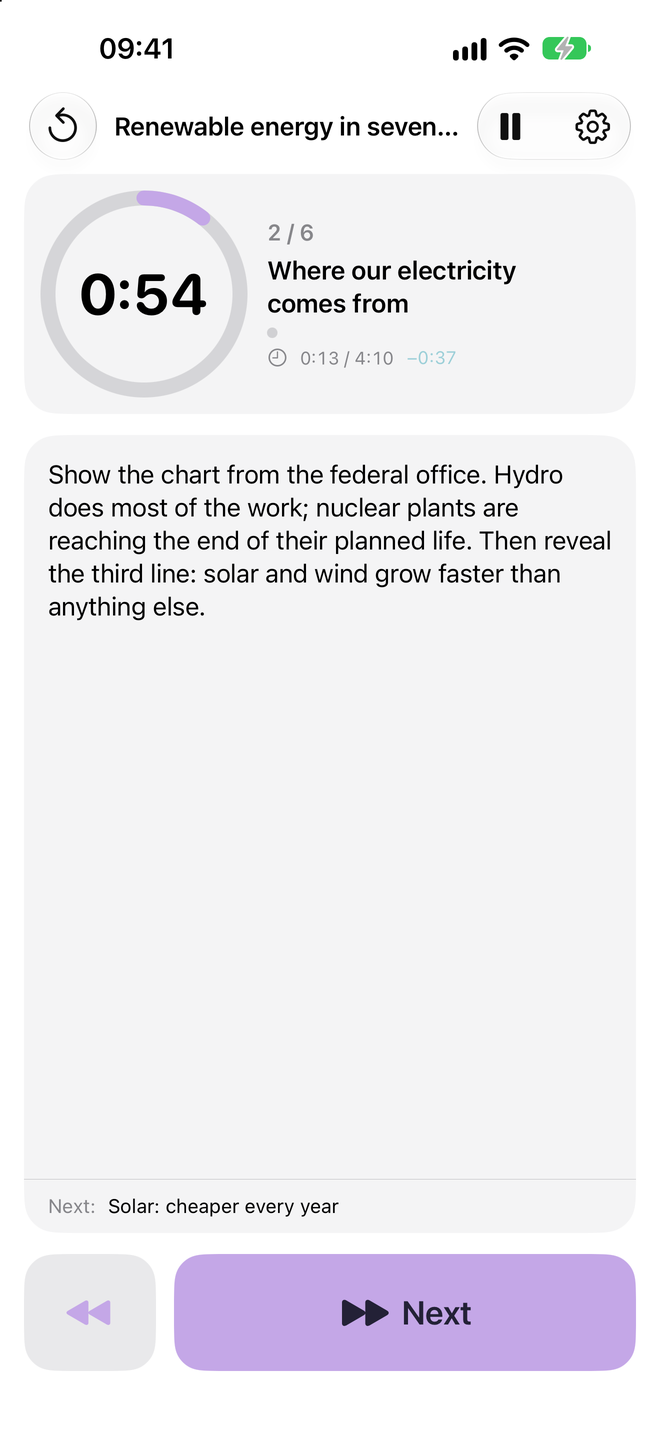
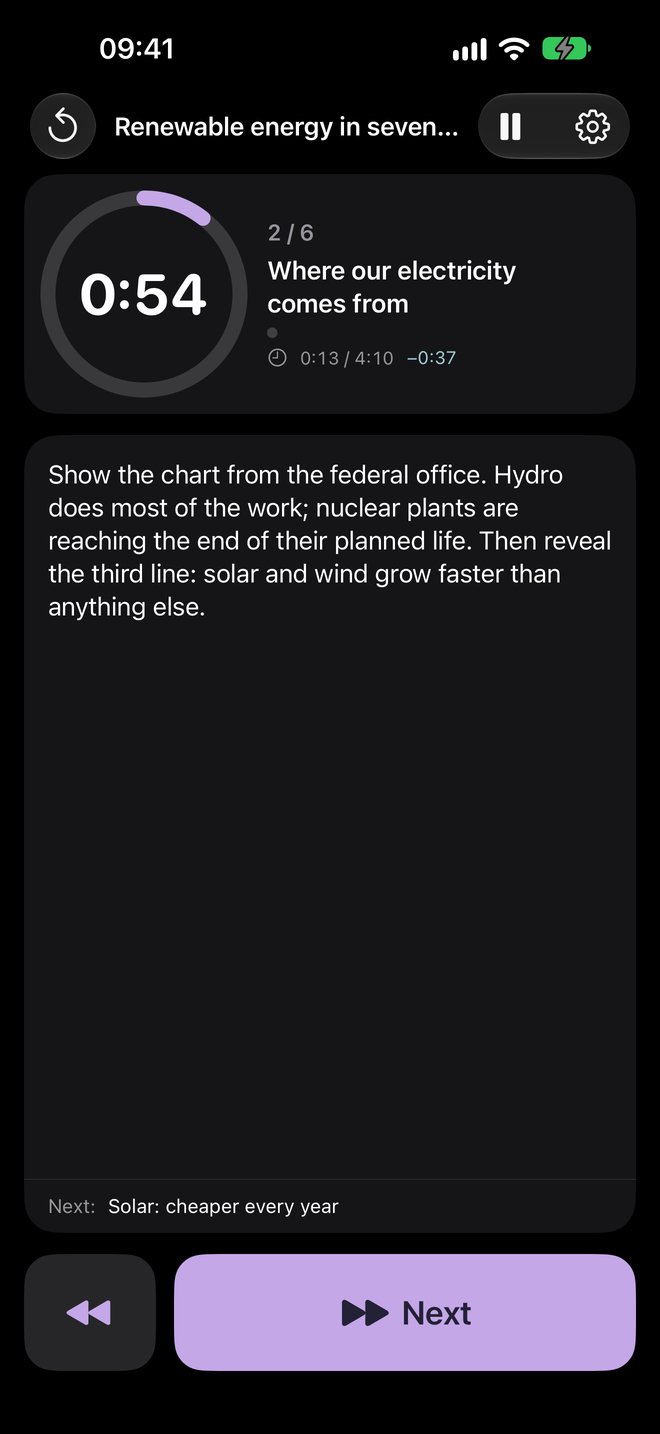
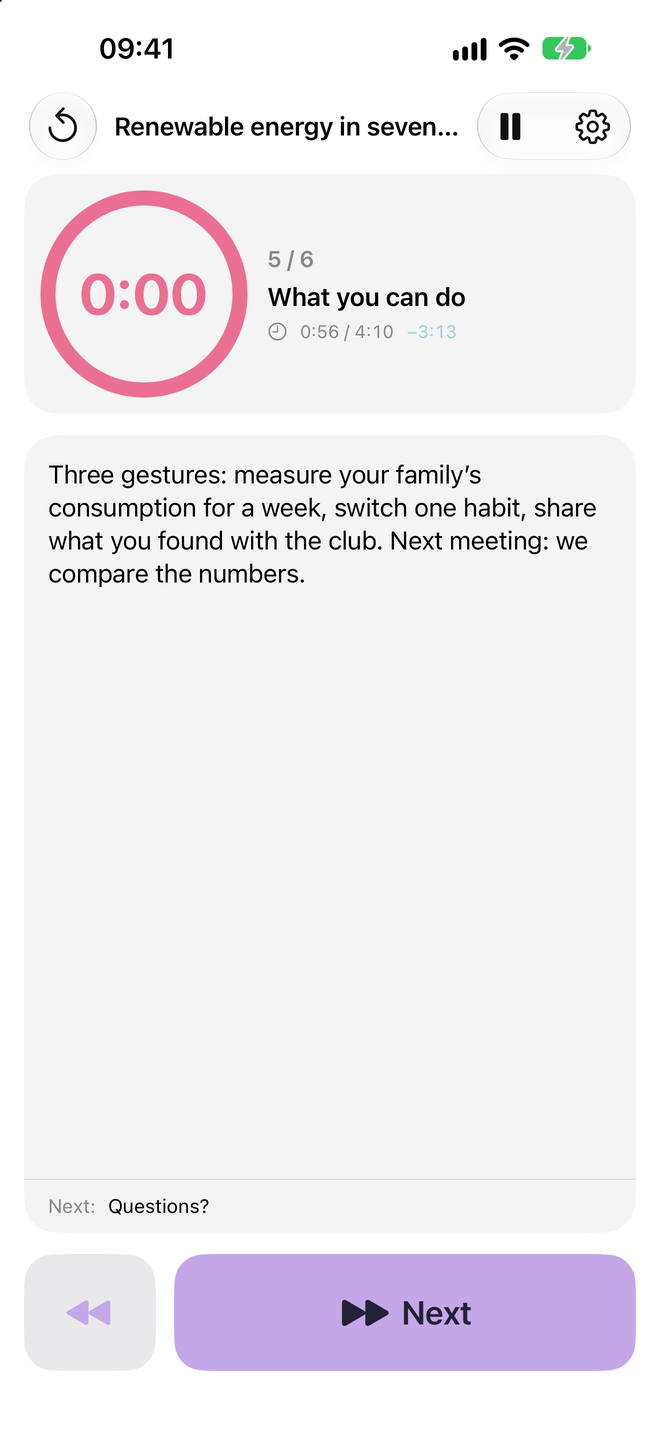
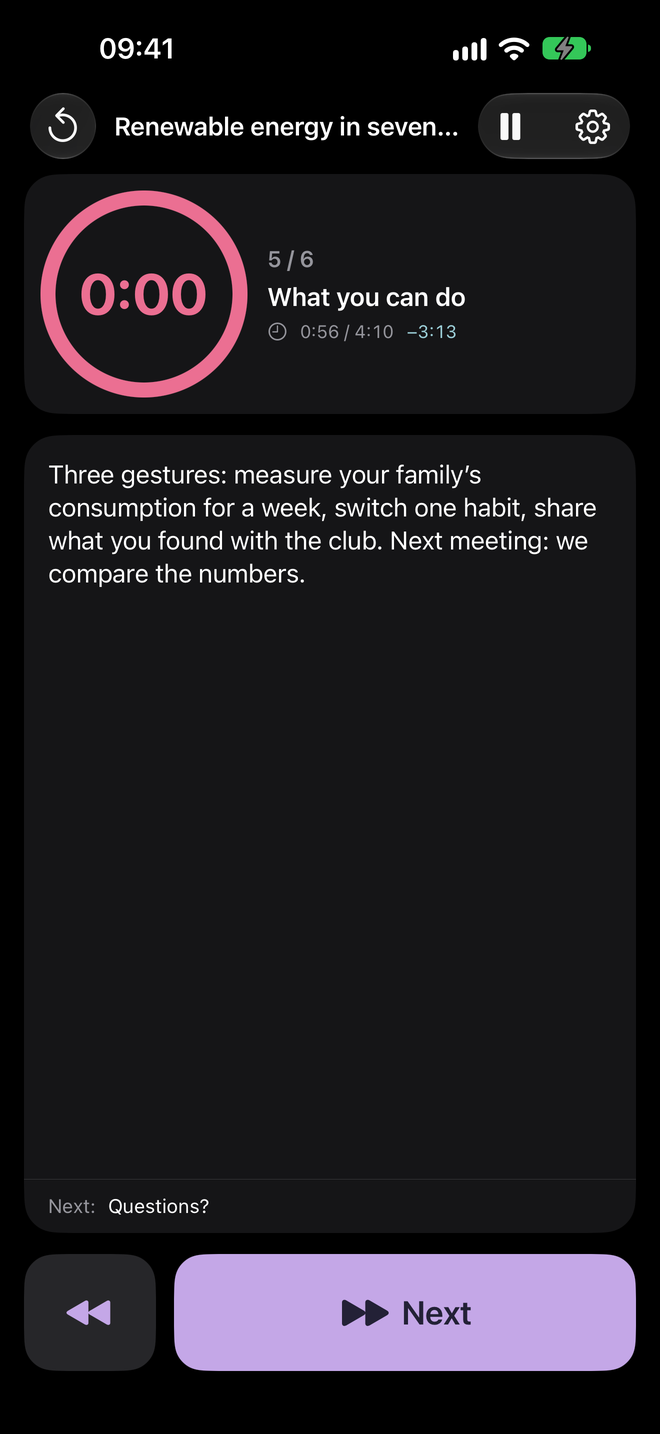
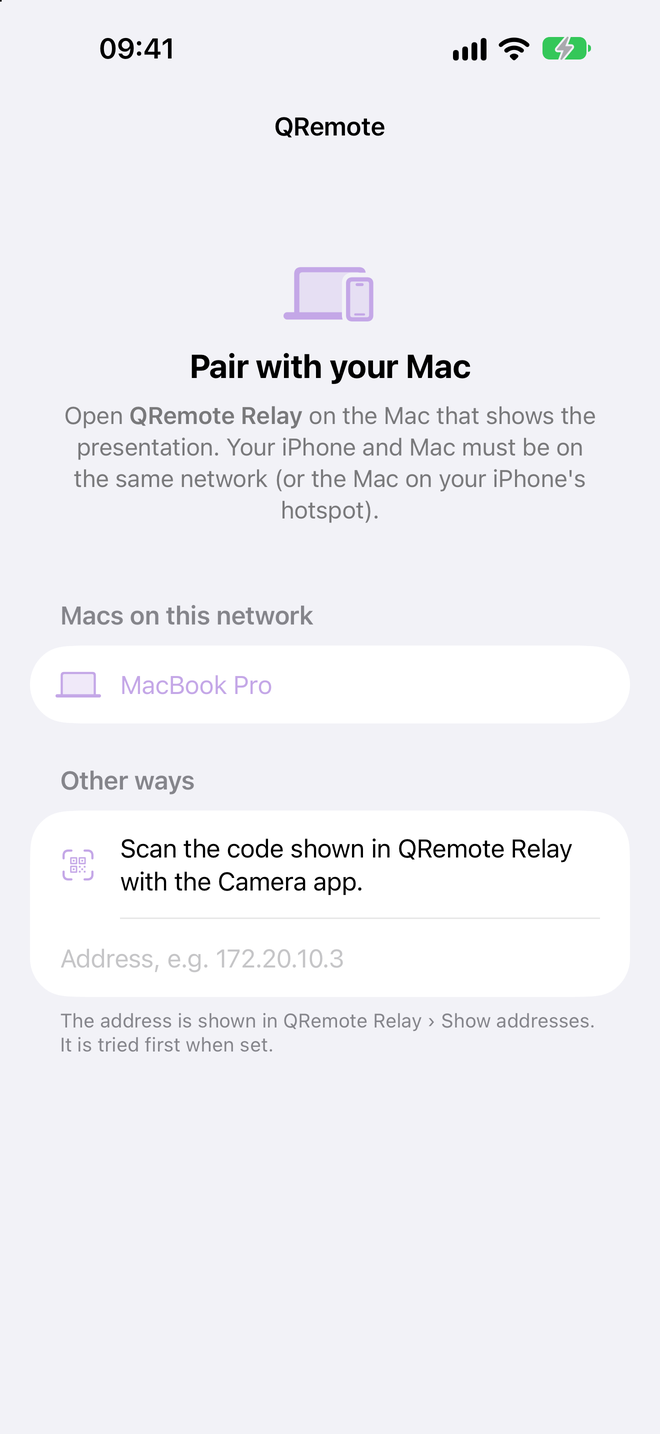
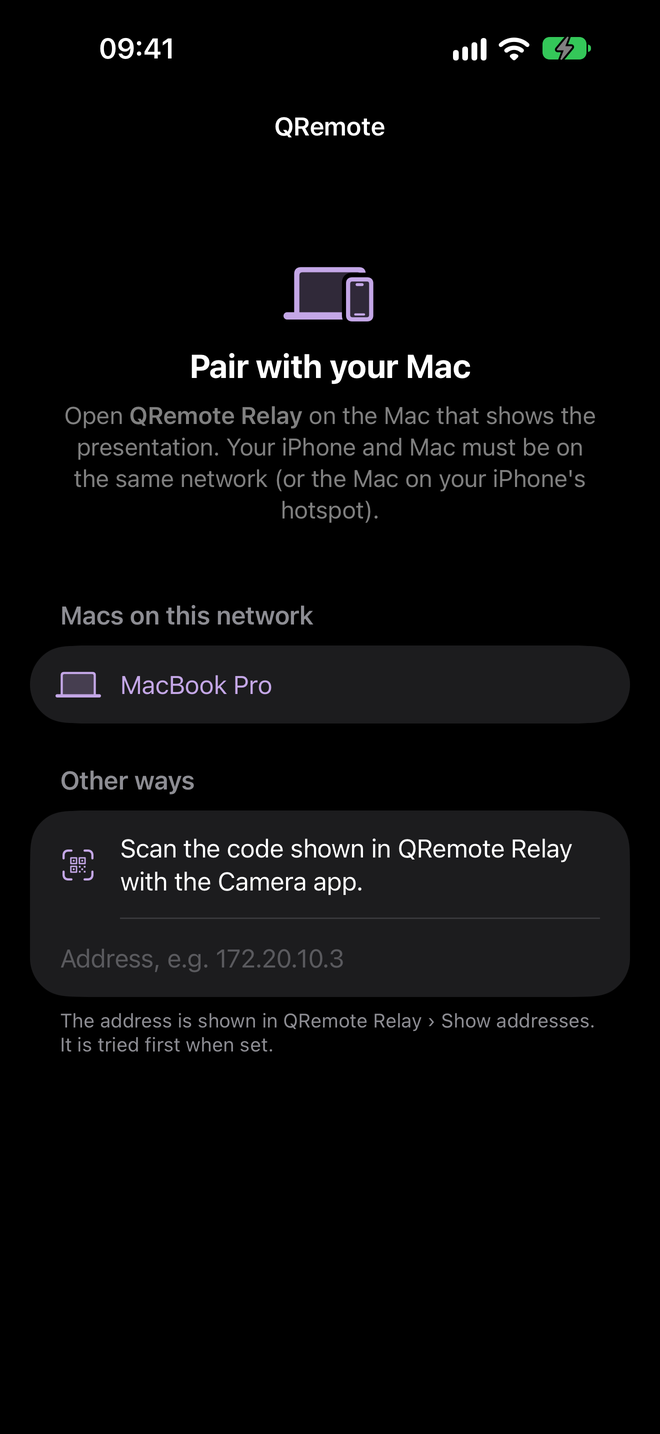
- Next (large) and Back at the bottom, within reach of your thumb; pause and reset at the top.
- The slide’s countdown (or, on untimed slides, the time spent on it), the slide’s title and its steps.
- The total time against the plan:
+0:12means you are 12 seconds behind,−0:30ahead. - Your speaker notes, and the title of the next slide.
- The screen stays on while you present.
Apple Watch
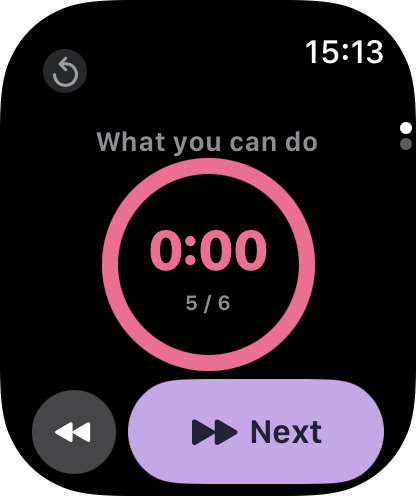
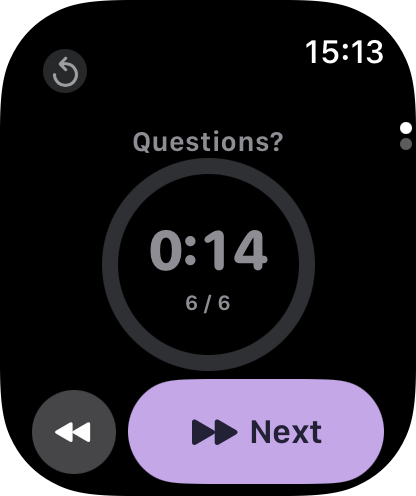
| On the watch | Effect |
|---|---|
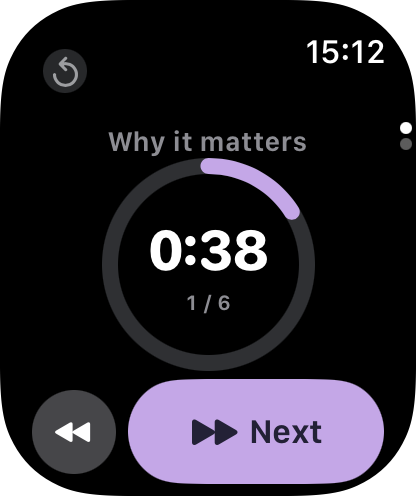
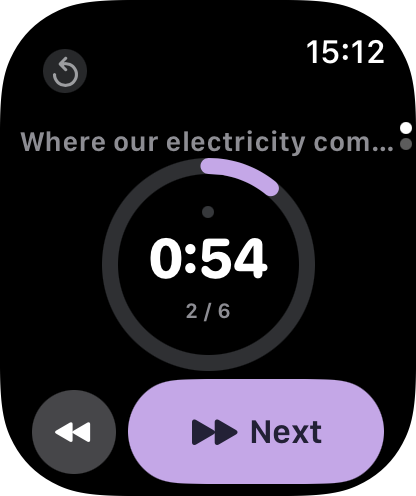
| Double tap or Next | Next step or slide (double tap: Apple Watch Series 9, Ultra 2 and later) |
| Back (small round button) | Previous |
| ↺ (tiny, top left) | Reset the clocks (asks for confirmation) |
| Long press on the ring | Pause / resume |
| Turn the Digital Crown | Second page: link status, total time, ahead / behind, pause, settings |
| Light buzz | A few seconds before the end of the slide (setting: never, 3, 5 or 10 s) |
| Two strong buzzes | Time’s up |
The watch keeps counting and buzzing with your wrist down, for talks of up to an hour. To keep QRemote on screen when you raise your wrist: iPhone › Watch app › General › Return to Clock › QRemote › After 1 hour.
QRemote Relay (Mac)
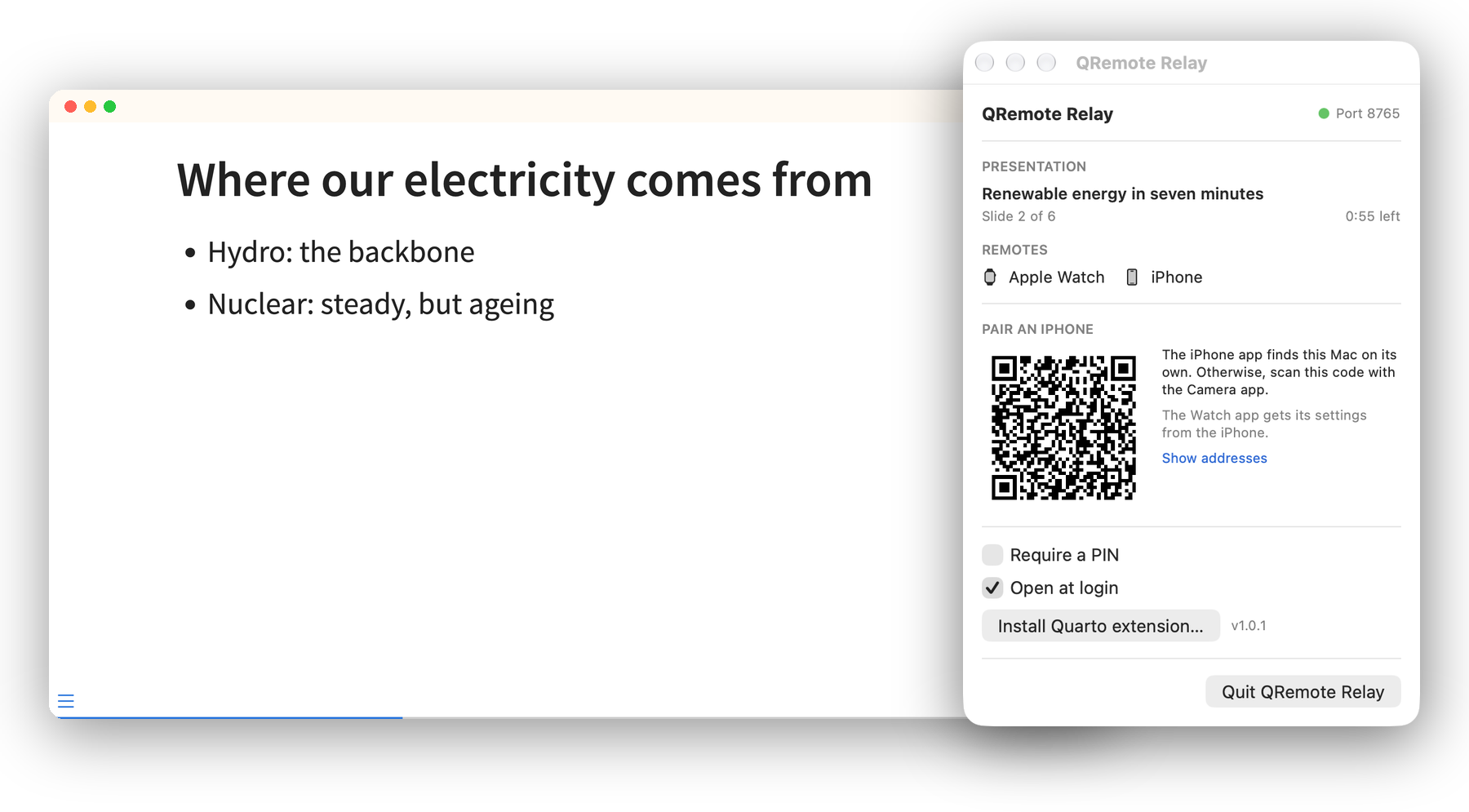
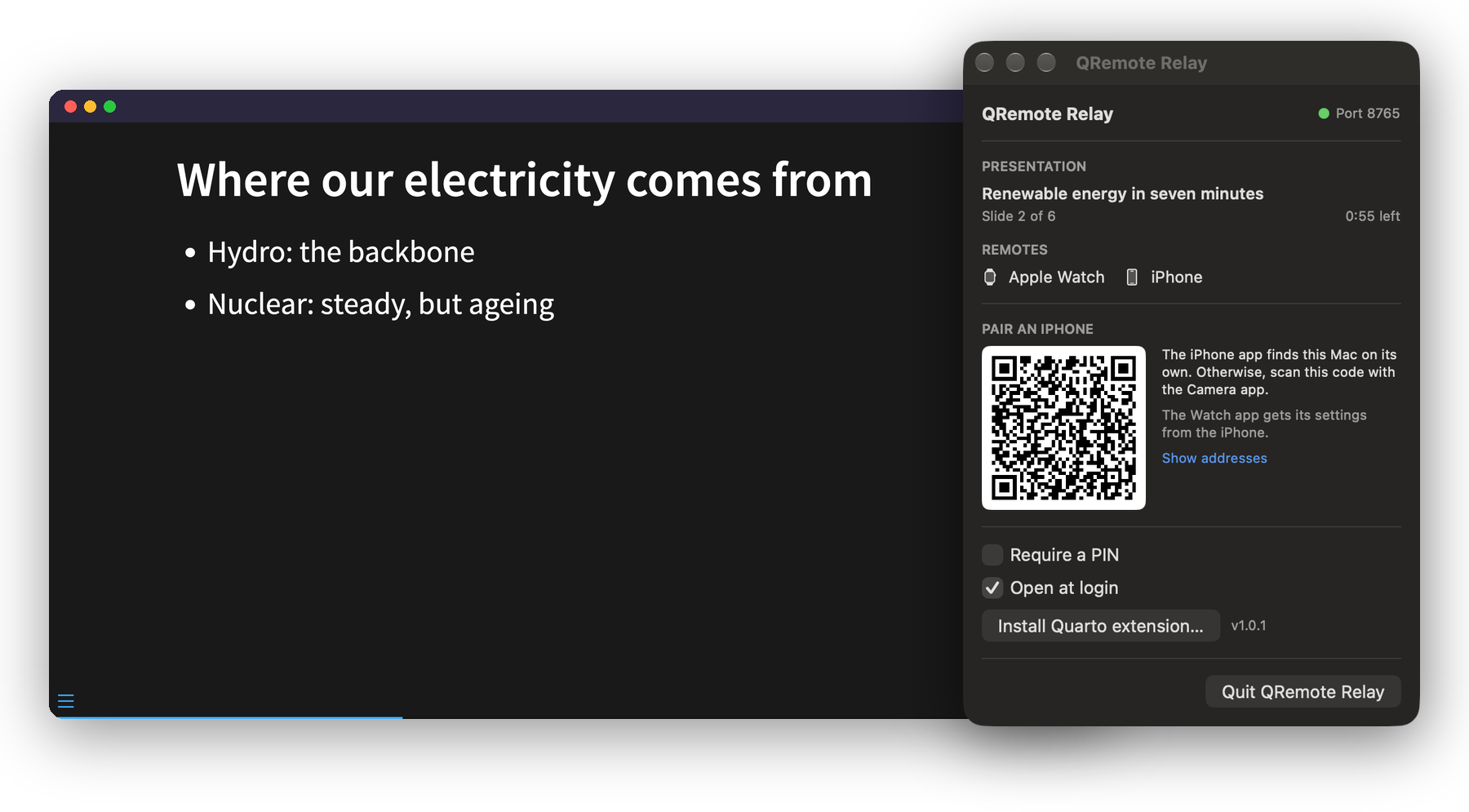
QRemote Relay lives in the menu bar. It links the presentation open in your browser to your remotes:
- the presentation connects on its own as soon as you open it on this Mac;
- your iPhone finds the Mac on the local network, or scans the pairing code from the menu with the Camera app;
- the menu shows the open presentation, the current slide and the connected remotes;
- Require a PIN, so nobody else on the network can drive your slides;
- Open at login, so it is always there before a talk;
- Install Quarto extension… copies the extension into a presentation folder.
Before a talk
- Network. Your iPhone and your Mac on the same network. Safest in a classroom or a conference room: the Mac on your iPhone’s Personal Hotspot, since many institutional Wi-Fi networks keep devices from seeing each other.
- Mac. QRemote Relay is running (remote icon in the menu bar; it fills in when a presentation is connected). Open the rendered presentation in your browser.
- iPhone. Open QRemote. The first time, tap your Mac in the list and allow Local Network access.
- Watch. Open QRemote. It uses the Mac chosen on the iPhone.
- Test. Tap Next: the presentation moves and the countdown starts.
Settings
| Setting | Where | |
|---|---|---|
| Mac, address, PIN | iPhone › ⚙︎ | The watch receives them from the iPhone. Without the iPhone: watch › second page › Settings. |
| Buzz before the end | iPhone › ⚙︎ (or the watch) | Never, 3, 5 or 10 seconds |
| PIN | Mac › menu › Require a PIN | Shown in the menu and included in the pairing code |
| Open at login | Mac › menu |
Problems? See Support.